![Busify Logo-3.png]](https://knowledge.busify.com/hs-fs/hubfs/Busify%20Logo-3.png?height=40&name=Busify%20Logo-3.png)
Overview
The Reports section gives company owners and admins a centralized place to monitor performance, revenue, and outstanding balances across Busify.
With ready-to-use dashboards and downloadable reports, you can analyze trends, track payments, and share accurate data with your team or accounting staff, all in one place.
Accessing Reports
-
In the top menu, click Reports.
-
You’ll be taken to the Management Dashboard.
-
Use the left-hand menu to navigate between report types:
-
Management Dashboard: Overview of performance trends and company metrics.
-
Sales Reports: Detailed list of reservations, revenue, and payment data.
-
AR Aging: Summary of outstanding balances and overdue payments.
-
Reservations: Detailed list of reservations, revenue, and payment data.
-
-
Management Dashboard
The Management Dashboard provides an all-in-one view of your company’s performance over time. Use this section to quickly assess performance trends, identify seasonal patterns, and measure growth.
Key metrics:
-
Total Quote Volume & Conversion Rate: Tracks total quote $ and how many quotes turn into bookings.
-
Total Reservation Volume & Count: Measures overall sales and reservation activity.
-
Average Reservation Amount: Shows average trip value to help gauge profitability.
You can adjust the view to analyze data daily, weekly, or monthly, you can also select specific date ranges to analyze and also filter by Creation Date or Pickup Date.

Accounts Receivable (AR Aging)
The AR Aging report helps you monitor outstanding balances and overdue invoices.
It categorizes unpaid reservations by aging buckets, such as:
-
Current Due
-
1–30 Days Past Due
-
31–60 Days Past Due
-
61–90 Days Past Due
-
91+ Days Past Due
Each row lists the reservation, customer, invoice date, balance due, and days past due.
Totals for each category appear at the top for quick reference.
You can export this report using the same Download CSV or Download PDF options.
Reservations
The Reservations tab lists all reservations with key financial details, including:
-
Reservation ID, customer, and trip details
-
Reservation status (Started, Finished, Cancelled, etc.)
-
Amount, invoice date, and due date
You can filter by Trip Dates, Reservation Status, or Customer to refine your results.

Use the totals at the top for a quick snapshot of total sales, average sale, and tax amounts.
To export your data, select Download CSV or Download PDF in the top-right corner.
Exporting Reports
All report types can be exported for external review or accounting purposes.
To export:
-
Open the desired report (Sales, AR Aging, Reservations, etc.).
-
Apply filters as needed (dates, customers, reservation status).
-
Click Download CSV or Download PDF in the top-right corner.

Exports include all visible columns and active filters, ensuring consistent data across your systems.
Why This Matters
-
Save time with ready-to-use exports for accounting or internal review.
-
Gain visibility into company performance, trends, and cash flow.
-
Identify overdue balances and follow up on payments more efficiently.
-
Share accurate financial insights with your team or external partners.
Frequently Asked Questions
Q: Who can access the Reports section?
Only Owners can view or export reports. Owners can give permission to Admins.
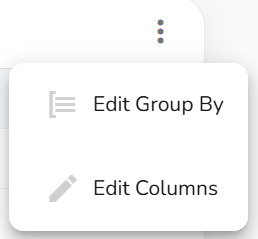
Q: Can I customize report columns?
You can click in the 3 grey dots to the far right in AR Aging and Reservations tab and there you can group columns by multiple options.
Q: How often are the reports updated?
All data refreshes in real-time as new reservations, payments, or quotes are created in Busify.
Need Help?
If you have any questions about using Reports or need assistance interpreting data, contact support@busify.com or reach out through your Busify dashboard chat.